Location of this document:
https://carnegie-observatories.github.io/swope/Swope/
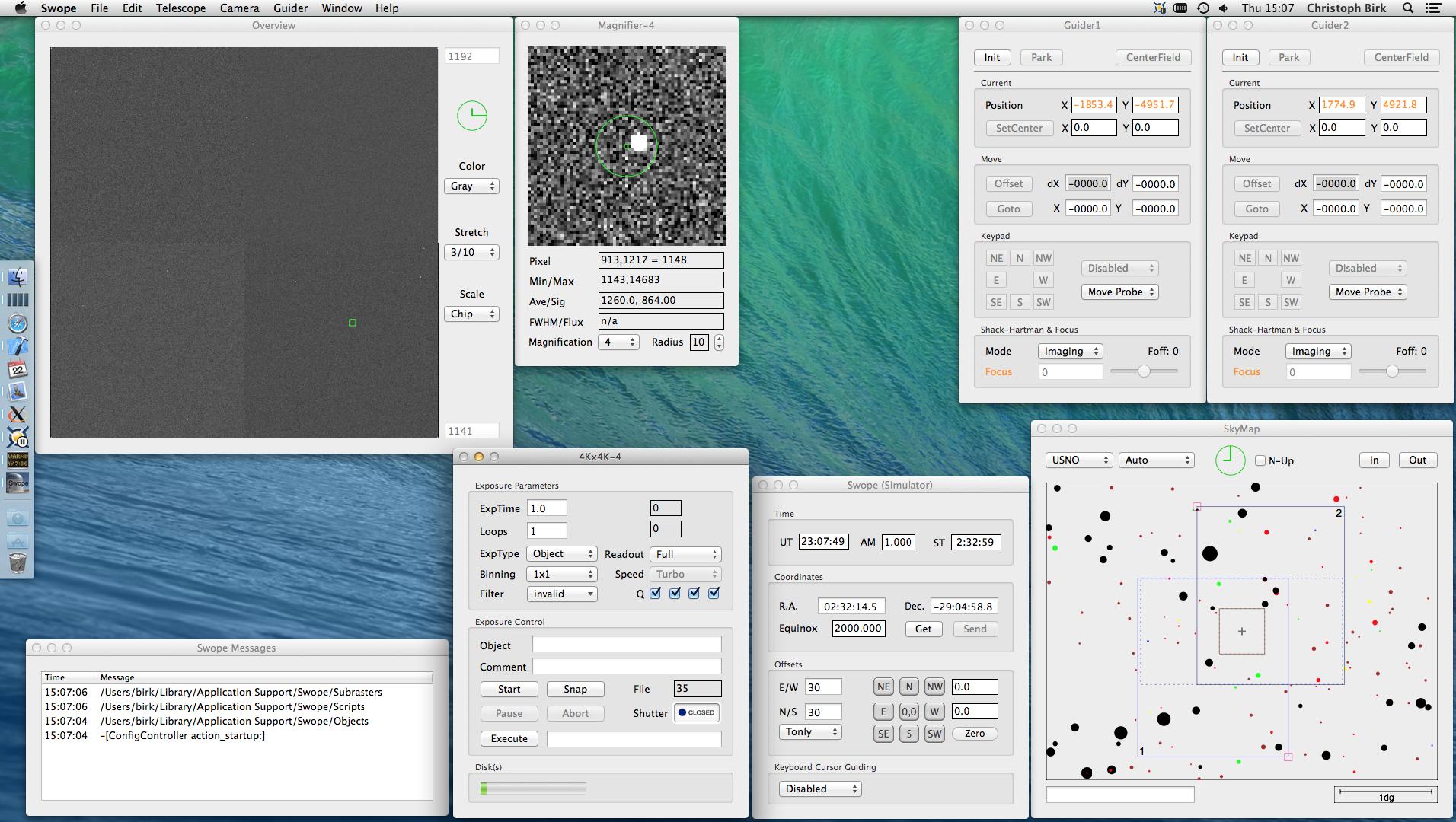
Swope Network Layout
(pre IMB-upgrade)
Instrument Software Documentation Index
News
Latest releases and changelog: github.com/carnegie-observatories/swope/releases
v1.9 (build 0492) (2025-01-22)
- Implemented the JSON interface to the new TCS.
- Download: Swope.app.zip
v1.8.2 (2024-03-01)
- Present a confirmation dialog-box when using the "SetCenter" button.
v1.8.1 (2024-01-04)
- Check for unique filter names across wheels.
v1.8 (2023-11-20)
- Allow to run the GUI without the filter wheels connected.
- This is necessary to mount Henrietta's rotator at the
location of the filter wheel package.
Note about Scripting:
Please set the exptype before any other exposure parameter
(eg. exptime, loops) because setting the
exposure type may affect other exposure parameters.
Release Notes
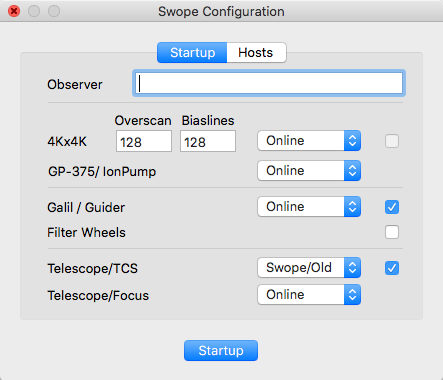
Screen Shots and GUI Documentation
- Startup, Menu and Preferences
- Configuration
- Main Menu
- Preferences
- Data Acquisition
- Camera
- Focus Sequences
- QuickLook Tool
-
- Dewar Status
- Filter Hardhat
- Telescope and Guiders
- Telescope
- SkyMap
- Object List
- Airmass Display
- Guider Control
- Galil Hardhat
- TCP/IP Interface
Startup, Menu and Preferences
Configuration --
Main Menu --
Preferences
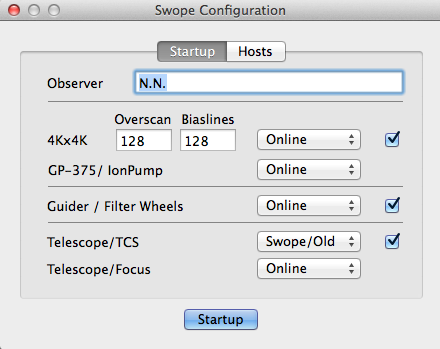
Configuration
The images below show the standard setup for normal operations:
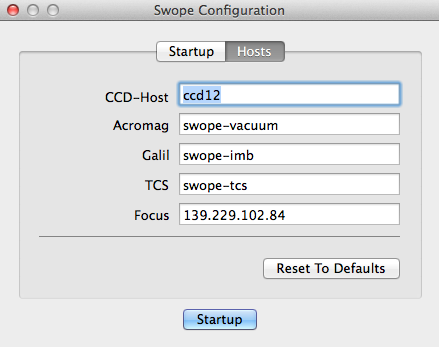
- Hosts: the computers the Swope-GUI talks to: the
CCD-Host, the Acromag (vacuum), the Galil
(guider and filter wheels), the TCS and Meteo, the
weather server of the Telescope window. The
picture is older: it shows a Focus row, which is gone, where
Meteo now is.
- The hosts are kept in the shared preferences. Startup
saves them (an empty field keeps the saved one), and they are used
from then on; to change one, quit and start the GUI again.
Reset To Defaults fills in the standard hosts: ccd12,
swope-vacuum, swope-imb, 10.8.80.53 and env-api.lco.cl.
- Meteo takes a host name or address, with a port if needed
(127.0.0.1:8080), which the GUI asks over http://, or a
full address starting with http:// or https://. It
has no Online menu: when the server cannot be reached, the
Weather light is hollow and the line beside it reads
no data: and the reason. Plain http works for
env-api.lco.cl, an IP address or a short host name; for any other
name use https:// (macOS refuses plain http to it).
Main Menu
Swope --
File --
Telescope --
Camera --
Guider --
Help
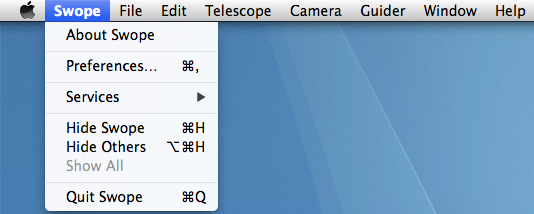
- About Swope: displays a window that shows the version
of the Swope-GUI.
- Preferences: opens the preferences
window.
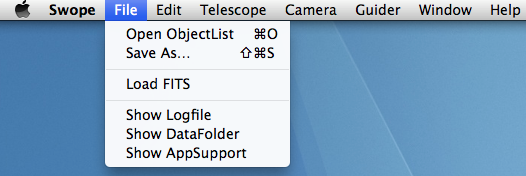
- Open ObjectList: opens a file-selector dialog
that allows to load an object list into the
ObjectList window.
- Save As..: saves the current object list.
- Load FITS: load FITS file(s) into the QuickLook Tool.
- Select all (4) files of the run-number that you want to load.
- Show Logfile(s): opens the Swope-GUI logfile
in the Console.
- Show DataFolder: open the current data path(s) in a Finder window.
- Show AppSupport: opens the "Application Support" folder in a
Finder window.
- This folder contains the
Objects, Scripts and Subrasters directories.
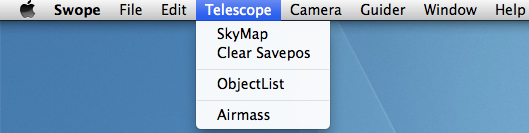
- Telescope Window: opens the Telescope
window again after it has been closed.
- SkyMap: opens the SkyMap window.
- Clear Savepos: removes the green squares that mark
previous exposures from the SkyMap.
- ObjectList: opens the Object List window.
- Airmass: opens the Airmass window.
- Modify CSET…: sets the TCS's CSET to typed values
(Engineering Mode only; see
Commands).
- STOP Telescope and Dome (⌘.): the same as the red
STOP button under the Status box of
the Telescope window; it also works while a dialog is
open.
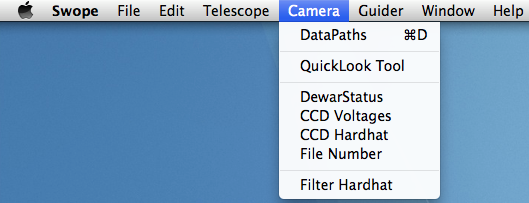
- DataPaths: opens a dialog that allows the user to
set the path for writing the FITS files.
- QuickLook Tool: opens the QuickLook Tool.
- Dewar Status: opens the Dewar Status window.
- CCD Voltages: opens a dialog that allows to set the CCD voltages
(requires password).
- CCD Hardhat: opens a dialog that reloads
the DSP code.
- File Number: enables (temporarily) the File number edit on the Camera GUI
- Note: Existing files will be overwritten without warning.
- Filter Hardhat: opens a dialog that defines
the list of available filters.

- Guider: opens the Guider Control windows.
- GalilHardhat: opens the Galil Hardhat window.

- User Manual (LCO Web): opens a web-browser with the Swope CCD user manual:
- "http://www.lco.cl/Members/fdimille/swope/c40-ccd-manual"
- User Manual (PDF): opens a PDF-reader with a local version of the
user manual.
- Software Documentation: opens a web-browser with this document:
- "https://carnegie-observatories.github.io/swope/Swope"
Preferences
The Swope-GUI will be used from multiple accounts and
it is desireable that certain settings are maintained between
account resets. I therefore keep these settings outside
the current user account in
/Users/Shared/Library/Preferencs/edu.carnegiescience.obs.Swope.plist
General --
Camera --
QuickLook --
Weather
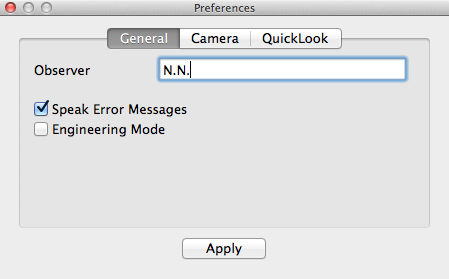
- Observer: FITS header keyword OBSERVER.
- Engineering Mode: certain features (CCD-Voltages, Galil-Hardhat)
of the Swope-GUI are potentially harmful to the instrument
and require the GUI to run in engineering mode
(password protected).
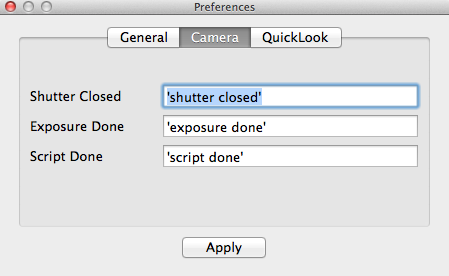
- Shutter Closed: sound after the shutter closes (before readout).
- Exposure Done: sound after the readout is done.
- Script Done: sound after a script has finished.
- If the the text in the edit-box is enclosed in single quotes ('),
it will be spoken using the default system voice; otherwise the
string will be interpreted as a sound file name and be played.
- Unless an absoulte path is given, the file is expected to reside in
the "/Users/Shared/Library/Application Support/Swope" directory.
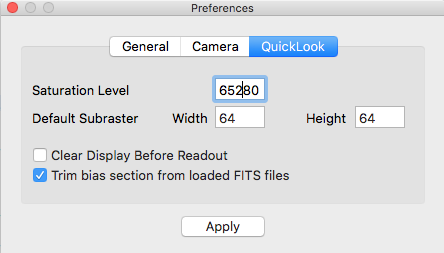
- Saturation Level: pixels above this level will be shown in red.
- Default Subraster: subraster geometry when adding a subraster
using the 'a' key on the display.
- Clear Display Before Redaout: clears (black) the display before
a new exposure is read out.
- Trim bias section from loaded FITS files:
This allows to display the bias sections (overscan and biaslines)
- in the
QuickLook tool for FITS files loaded from disk (not for data directly read
from the array).
- Weather: the limits of the weather advisory in the
Telescope window: humidity (%), wind and gusts
(mph), the dew margin (°C), rain (mm/h) and the data age
(minutes), each with a Warning and a Close value (rain:
Close only), and the env-api Station (the server is
the Meteo host of the startup panel).
- A row turns the light amber at its Warning value and red
at its Close value; the dew margin does so below its values.
Data older than the age Warning turn it amber, older than the
age Close value hollow (not known).
- The fields can be changed in Engineering Mode only (open
the preferences again after turning it on). LCO defaults
fills in the defaults; Apply saves the values, and the
Swope log records each change. Use a point, not a comma, for
decimals. A value that is not valid shows weather limits not
saved, and the panel stays open.
- The defaults are placeholders from LCO's weather rules, until the
Swope staff confirm them: humidity 70/80 %, wind 30/35 mph,
gusts 40/45 mph, dew margin 5/2 °C, rain
0.1 mm/h, data age 4/10 minutes.
Data Acquisition
Camera --
Focus Sequences --
DataPaths --
Dewar Status --
CCD Voltages --
CCD Hardhat --
Filter Hardhat --
QuickLook Tool
Camera
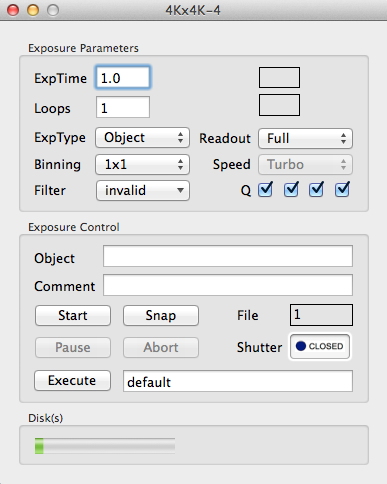
- ExpTime: sets the exposure time (1..8200 seconds)
- Loops: number of exposures per sequence.
- ExpType: sets the exposure type
- { Object, Focus, Bias, Dark, Flat, Focus (auto) }
- Focus and Focus (auto) take a
focus sequence.
- Readout: sets the readout mode
- { Full, Subraster }
- Binning: set the binning
- { 1x1, 1x2, 2x1, 2x2, 4x4 }
- Speed: sets the readout speed/gain combination
- fixed to Turbo
- Filter: moves the filter wheel(s) to the selected
filter combination
- There are 2 filter wheels with each 5 positions
- Q: selects which quadrants should be saved to disk
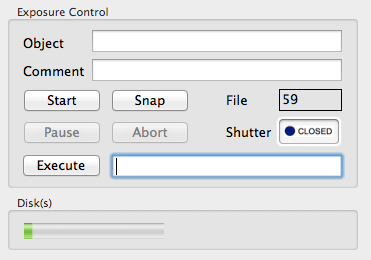
- Object: OBJECT value in the FITS header.
- This field will be sampled at the beginning of the readout.
- Comment: COMMENT value in the FITS header.
- This field will be sampled at the beginning of the readout.
- The FITS record will be truncated to the first 26 characters.
- Start: starts a loop sequence of Loops exposures.
- Snap: takes a single exposure in 4x4 binning.
- After the exposure the previous settings are automatically restored.
- File: next file name number (ccdNNNN.fits)
- The number may be set using the
Camera--FileNumber menu.
- Pause: close the shutter and stop the exposure timer.
- Resume: open the shutter and re-start the exposure timer.
- Abort: aborts the current readout (frame will be lost).
- Stop: stops the current exposure, the shutter closes and
the readout will start immediately.
- Execute: executes the script file in the edit-box
to the right of the button.
- Disk(s): disk status
Focus Sequences
A focus sequence takes Loops exposures of ExpTime on one
frame. Between exposures the charge is shifted on the chip (twice as far
after the first exposure), so every star appears once per focus position.
The frame is read out once, at the end.
An ExpTime above 30 seconds asks for confirmation
(not in Engineering Mode).
- Focus: between exposures a dialog asks you to change the
telescope focus.
- OK continues; cancel ends the sequence and the frame
is read out.
- Focus (auto): the focus is stepped automatically.
- Start asks for Center and Step, in whole
encoder counts. Center defaults to the current focus,
Step to the last step used (initially the
focusAutoStep preference, 50).
- The focus is stepped upward, to take up backlash: the first
exposure is at Center − n×Step,
with n = (Loops−1)/2 rounded down, and the
focus moves up one Step before each following exposure.
E.g. 7 Loops cover Center−3×Step
.. Center+3×Step.
Each move waits until the focuser has settled (at least 4 seconds).
- The whole sweep must lie within the focus limits
(minFocus, maxFocus preferences, default
20000..28000), in Engineering Mode too.
Fewer than 5 Loops asks for confirmation: the focus
analysis needs at least 5 points.
- Needs the Telescope window connected and
the TCS switched on. If a focus move fails, an alert names the
step and the TCS's reason (e.g. TCS is switched off), and
the sequence stops as with Stop: the exposures taken so far
are read out (none if the first move fails).
- Also available in scripts and over
TCP/IP as focus_auto.
- Stop: ends the sequence (a running focus move finishes first);
the frame is read out with the exposures taken so far.
- FITS header:
- TELFOCSQ: the focus encoder value of each exposure, in
order, comma separated. It has room for 10 positions: more
Loops ask for confirmation at Start, and then only
the first 10 positions are recorded.
- TELFOCUS: the focus of the last exposure, i.e. of the
star image that was not shifted.
DataPath
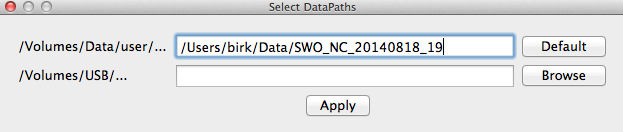
The FITS files will be written to both paths simultaneously.
- Default: fills in both paths for the current night.
- The first path is on the local disk
($HOME/Data/Swope/utYYMMD1_D2), the second one is on the
external data volume (/Volumes/DATA_SWOPE/utYYMMD1_D2),
e.g. ut260929_30 for the night of 2026-09-29/30.
The directory name changes at 09:00 UT.
- The primary copy is written to the local disk so that an unmounted or
slow DATA_SWOPE volume cannot hold up the night; that volume
keeps the second (mirror) copy.
- The same defaults are used by the Simulator builds.
- Browse: choose the second path in a file dialog.
- Apply: checks and stores both paths.
- A directory that does not exist yet can be created from the
confirmation dialog. A path that cannot be created or written to
is not stored.
- If the second path is empty, or identical to the first one, each
frame is written once.
- If neither path is usable a no data path warning is shown.
Dewar Status
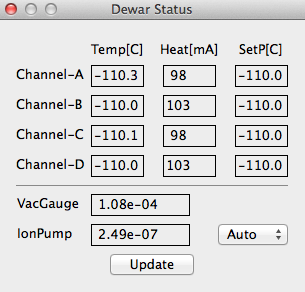
Displays the temperatures, heater currents and setpoints of the DSP
control loop.
- VacGauge: pressure reading from the GP-375 vacuum gauge.
- IonPump: pressure reading from the ion pump.
- { Off, On, Auto }
- The Auto mode turns the ion-pump ON if
- pressure below 1.2e-4 (from the GP375 vaccum gauge) and
- CCD temperature (2nd highest) below -100 [C]
- The Auto mode turns the ion-pump OFF if
- pressure above 1.8e-4 (from the GP375 vaccum gauge or
ion-pump sensor) or
- CCD temperature (2nd highest) above -95 [C]
CCD Voltages
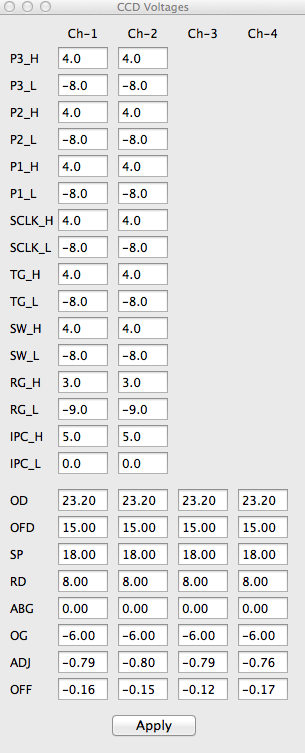
- Engineering Mode only (password protected).
CCD Hardhat
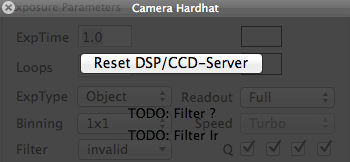
- Reset DSP/CCD-Server: reloads the DSP code.
Filter Hardhat
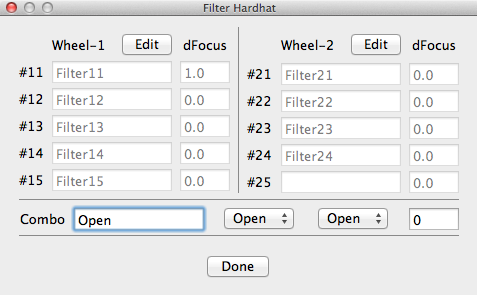
This window allows to define the filter name in each of the
5 positions of the 2 filter wheels.
The Swope-GUI automatically updates the Filter
menu on the Camera window.
QuickLook Tool
- Left mouse button: moves the Magnifier window.
- Right mouse button: adjusts the contrast and level of the color map
(SAOimage, DS9).
- Cursor keys: moves the Magnifier window by 1 pixel.
- If the 'shift', 'option' or 'command' keys are held down,
then the Magnifier moves by 5 (25, 125) pixels at a time.
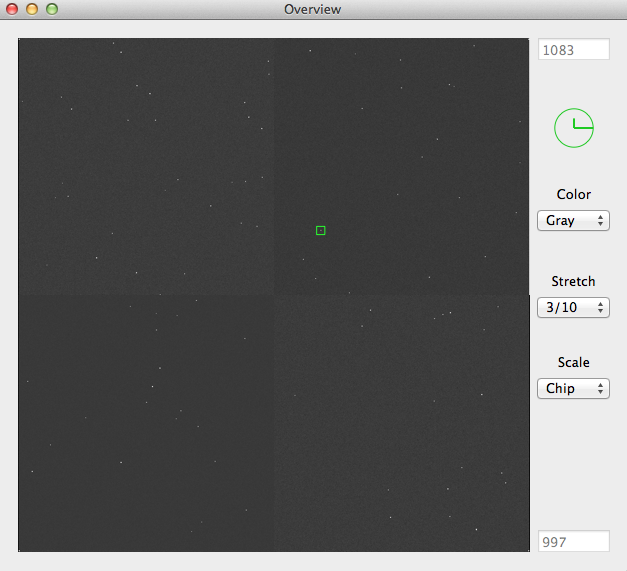
- Color: sets color lookup table
- { Gray, BBdy, Rain, InvG }
- Stretch: sets the dynamic range of the scaling algorithm
- cuts: manual data range (edit-boxes at the top and bottom)
- med3: -3..+3 sigma around the background (median of frame)
- med5: -5..+3 sigma around the background
- 3/10: -3..+10 sigma around the background
- mima: full data range
- Scale: sets the scaling scope
- { Global, Chip }
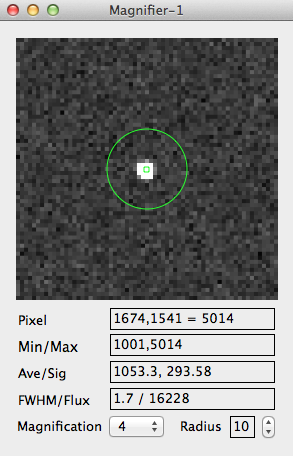
- Pixel: The current cursor pixel coordinate
(center of the aperture and magnifier)
and pixel value at the cursor position.
- Min/Max: Minimum and maxium pixel value within the aperture.
- Ave/Sig: Average and standard deviation within the aperture.
- FWHM/Flux: FWHM and flux estimate
- Press the 'space' key while centered on a star to calculate
an estimated FWHM and flux.
- Magnification: Magnification factor of the Magnifier window
(2 at startup).
- Radius: Sets the radius for the aperture statistics
(MinMax, AveSig above).
Telescope and Guiders
Telescope --
SkyMap --
Object List --
Airmass Display --
Guider Control
Telescope
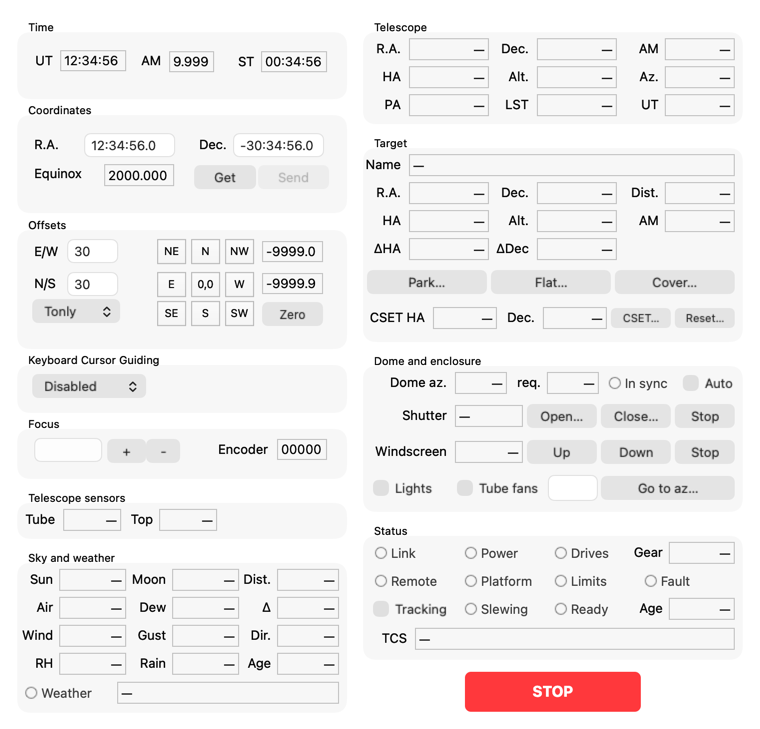
The left column holds the controls (Time, Coordinates,
Offsets, Keyboard Cursor Guiding, Focus) and the
Telescope sensors and Sky and weather boxes. The right
column shows the state of the TCS (telescope control system), read about
once a second while the window is open (every 10 seconds while it is
minimised): the Telescope, Target, Dome and
enclosure and Status boxes, with STOP under them. Their
buttons and check boxes command the TCS: tracking, the presets, CSET,
the dome, the shutter, the windscreen, the lights and the fans (see
Commands below). Drive power is not in the
window: the drives are powered from the switch box (the TCS and
Console Enable key and the Console Power ON switch), and the
TCS initialises them by itself; the window shows it on the
Power, Drives and Gear lights. Otherwise TPS is
needed only to watch, and to take the drives out of stand-by (see
Commands). The
window's messages go to the Swope Messages window (see
Messages below).
The picture shows the window at launch, before the first reading.
Lights: green: on or fine; grey: off; amber: a warning; red: a
fault; hollow: not known.
Readouts: grey text: the last value, not current (the TCS has not
answered for 3 seconds); amber: a warning; white on red: an alarm.
Controls: greyed while they cannot be used.
Hold the pointer over a light, a readout or a greyed control for its
details.
- Get: Reads the telescope coordinates (J2000), airmass,
focus and temperatures from the TCS's next reading (it waits at most
5 seconds). It runs in the background, so the window (and STOP)
stay usable.
- Send: Slews the telescope to the R.A./Dec. in the
edit fields, after checks and a confirmation.
- The app first asks the TCS for its state and refuses the slew,
with the reason, if the TCS would refuse it: drives without power
(key switch or E-stop), drives in stand-by or not initialised, a hard
fault, a hard limit or E-stop, the platform not down, the telescope
past the pole, below 15° or beyond ±7 h, the
telescope changing gear, a target below 15°, below
Dec -89° or outside the hour angles
-6 h … +7 h. What to do is listed
below.
- Otherwise a dialog shows the target's coordinates, altitude,
azimuth, airmass and hour angle, how long until it reaches
+7 h (where the TCS stops tracking) or 15°, the Moon
distance and how far the telescope has to go, with warnings (target
below 20°, dome tracking off or dome in local control, the
telescope already moving, a script or an exposure running), and
asks Slew or Cancel.
- The target is sent with a name, shown by the TCS and TPS: the
Preview object if the fields still hold it, otherwise its
coordinates (typed coordinates or a SkyMap star).
- The app then checks that the telescope starts moving and that it
ends within 60" of the target, and reports otherwise. A slew that
does not end within 10 minutes is stopped as with STOP.
- In the Simulator the target checks use the Mac's clock and
nothing is sent.
- STOP (the red button under the Status box, also
Telescope → STOP Telescope and Dome,
⌘.): stops a slew, a preset or an offset, tracking and the
dome rotation (also a Go to az…), and turns dome
tracking off (TCS SLEWSTOP +
DOME STOP), like STOP Dome Telescope in TPS. It
never asks. While a dialog of the app is open the red button cannot
be clicked, but ⌘. still works. If the telescope keeps moving
after STOP, press STOP again. Turn tracking and dome tracking back on
afterwards with the Tracking and Auto check boxes.
STOP does not stop the shutter or the windscreen: they have their own
Stop.
- NE,N,NW,E,W,SE,S,SW: Moves the offsets from the
N/S and E/W windows.
- The app refuses an offset, and says why, if the telescope is not
tracking, still moving or not in slow gear, or if the offset is
larger than the TCS moves: 3600" in Dec, and 1800" of hour
angle in R.A. (1800"×cos(Dec) on the sky). It waits until
the telescope has finished the offset (the TCS does not report
R.A. offsets as moving) and checks that it moved.
- With T+G the guide corrections are paused (TCS
GUIDING) 1.5 s before the offset and resumed
afterwards; the guider probes move once the telescope has finished
the offset (not if it fails or is stopped). T+G always turns
the guide corrections back on, also if they were off in TPS.
T+G offsets are limited to 600", also in scripts.
- 0,0: Moves the negative offset from the
Sum(dx),Sum(dy) windows (above the Zero button).
- Zero: Resets the offset-sums in the
Sum(dx),Sum(dy) windows to zero.
- Keyboard Cursor Guiding: allows to "drag" the telescope
by using the cursor keys on the keyboard.
- Focus: Move the telescope focus (secondary mirror).
- Edit the number in the (left) edit control and press the enter
(return) key
to move the focus to that number.
- The [+] and [-] button move the telescope by the number in
the (left) edit control.
- Greyed buttons: the compass buttons, 0,0 and Send are
greyed while a move of the app runs (a slew, also while its dialog is
open, an offset, a preset, or a tracking or CSET command) and
while the TCS reading is not current; the compass buttons
and 0,0 also while the TCS would refuse an offset (not
tracking, moving, not in slow gear). Their tooltip says why.
Get and Zero always work.
- Telescope: R.A. and Dec. (J2000), airmass, hour angle,
altitude, azimuth, parallactic angle, sidereal time and the TCS's
UT. Amber: below 20° (the tooltip says when it is also below the
TCS's limit of 15°), beyond ±7 h, or past the
pole.
- Target: the TCS's current target, also one set by TPS or
another program: its name, R.A. and Dec. (J2000), distance from the
telescope, hour angle, altitude, airmass, and target minus telescope
(ΔHA, ΔDec). Amber below 20° or outside
-6 h … +7 h. — when there is no
target since the TCS started. Park…,
Flat…, Cover…: the presets.
CSET HA, Dec.: the TCS's CSET offsets (arcsec), with
CSET… and Reset….
- Dome and enclosure:
- Dome az. and req. (where the dome should be);
amber while the dome moves. In sync: green within 2° of
where it should be, amber when farther, grey while the telescope
moves or dome tracking is off. Auto: the dome tracking check
box.
- Shutter: Open or Not open (the TCS does not
report closed or moving), with Open…,
Close… and Stop. Windscreen: its position
in % (about 2 down, 95 up; — when the dome PLC gives none), with
Up, Down and Stop. The Lights and
Tube fans check boxes, and an azimuth field with
Go to az….
- Status:
- Link: the connection to the TCS; its tooltip gives the
TCS version. Red, with the cause, when the TCS does not answer.
- Power: the drives are powered (amber: in stand-by).
Drives: green when ready, amber while they initialise, red
with the first fault (a hard fault, a hard limit, or no 24 V:
key switch or E-stop). Gear: slow, fast, changing or not
ready.
- Remote: amber when the dome is in local control.
Platform: red when the observing platform is not down.
Limits: red when a hard limit or an E-stop is set; its
tooltip names it. Fault: red when the TCS reports a hard
fault.
- Tracking: the tracking check box; Slewing: amber
while the telescope slews
or offsets. Ready: whether a slew would be sent: red with the
reasons it would be refused, amber with the warnings of the slew
dialog, both in its tooltip; red also while the TCS reading is not
current (the other lights are then hollow). Age: since the
TCS last answered; amber when late, red when the link is lost.
- TCS: the TCS version and its clock against the Mac's; in
white on red Pointing model OFF or TCS clock off by
… s. Its tooltip gives the version, the connection
number and any value the TCS does not report.
- Telescope sensors: the Tube and Top (ring)
temperatures, written to the FITS header as TELTEMP1/2;
— when both read 0.0.
- Sky and weather:
- Sun: its altitude, amber above -18° (the tooltip
names the twilight). Moon: its altitude (the tooltip gives
the illuminated fraction) and Dist. from the telescope.
- The weather, from LCO's env-api (station swope; the
server is the Meteo host of the startup
panel), once a minute: Air (the temperature, °C),
Dew (the dew point, computed by the app) and Δ
(the dew margin: air minus dew point; its tooltip gives both);
Wind (average) and
Gust in mph (m/s in the tooltip) and Dir., where the
wind comes from, as a point of the compass (the degrees in the
tooltip); RH, Rain (mm/h) and the Age of the
sample. A value at its limit is amber. Air, Dew and Dir. have no
limits; the dew limits act on Δ. A value the sample lacks
shows —.
- Weather light: green within the limits; amber at a
warning limit, or data older than 4 minutes; red at a close limit;
hollow without data, or data older than 10 minutes. The line beside
it names the reason. The limits are in the
Preferences. This is advice only: the app
never acts on it, and LCO's weather rules still apply.
- Messages: the window has no message
pane of its own. The
telescope's events go to the Swope Messages window and the
Swope log
(/Users/Shared/Library/Logs/Swope/swope<YYYY>_<WW>.log),
with the camera's and the guiders': each slew, offset, STOP,
Preview and command, the changes the TCS reports (link,
drives, platform, local control, tracking, target, CSET), and the
changes of the
Weather light. Each event is shown once in the window, as its
notice if it opens one, otherwise as a line, and written once to the
log file as a line; for a failed slew or offset that line also names
the target or the offset (slew to 'M31' failed: …).
The log file also gets a line of TCS telemetry every minute, which
the window does not show. Of the changes the TCS reports, only six
open a notice: TCS link lost, hard limit, a hard fault,
the pointing model off, the TCS clock (see
below) and dome lights on with the
shutter open (see Lights).
- Window title: Telescope (Simulator) when the TCS is
offline in the preferences, Telescope (TCS Simulator
build) when the TCS is the simulator build, and (engineering
mode) in Engineering Mode.
- FITS header: at the start of each exposure sequence (and each focus
step) the app reads the TCS, waiting at most 2 seconds, and
writes its values. Two keywords say how good they are:
- TCSSTAT: OK (current), LOST (the TCS did
not answer: the values are the last ones the window read),
NONE (no TCS reading since the app started), SIM
(Simulator).
- TCSAGE: the age of the values in seconds; -1: none. The
later frames of a sequence keep the first reading, so their
TCSAGE grows.
Commands: the right column's buttons and check boxes. They are
for observers; only Modify CSET… needs Engineering
Mode.
- How they work:
- A control is greyed while it cannot be used, and its tooltip says
why: the TCS would refuse it (e.g. the shutter is open, the
dome is in local control), a command of its kind is running
(a move is running, a shutter command is running,
…), or the TCS reading is not current. The presets, tracking
and CSET count as moves, with the slews and the offsets: one
at a time. The two Stop buttons are never greyed.
- The check boxes (Tracking, Auto, Lights,
Tube fans) show the TCS's last reading, also while they are
greyed (Tracking during a slew or a preset). After a click they
keep the new state until the command has ended, then show the reading
again, so they go back if it failed.
- The app reads the TCS when a control is clicked, and again just
before it sends the command (a dialog may have been open a while).
If the TCS would refuse it, nothing is sent and a notice
… not sent gives the reason (see
below).
- Then the app watches the TCS until the command has done what it
should, and writes one line, e.g. dome to 180° done: at
180.0° (tracking and CSET have none: their change is logged
already). Otherwise a notice … failed gives the
cause; what to do is in the control's entry. A command stopped by
its Stop or by STOP gives a line only.
- In the Simulator nothing is sent: Simulator: … not
sent.
- Power: not in the app. The drives are powered from the
switch box (the TCS and Console Enable key and the Console
Power ON switch): with its 24 V present the TCS initialises
them by itself, and the Power, Drives and Gear
lights of the Status box show the result. TPS's Settings
→ Telescope Power only puts them in stand-by (Power
amber) and back; the staff use it.
- With the console key, wait at least 15 s between off and
on: a faster cycle trips the dome drive (GS3, "momentary power
loss"), and the dome then does not turn until the staff reset
it.
- Tracking (the check box in the Status box): tracking
on or off (TCS TRACK); it does not ask. Greyed while the
drives are not initialised, while the telescope moves and out of
slow gear; ticking also below 15° or beyond ±7 h,
where the TCS turns tracking off.
- tracking on failed, still off after 3 s: the TCS
turned it off again; the Status and Telescope boxes
show why (drives, altitude, hour angle).
- Park…, Flat…, Cover…
(the Target box): the presets. Each turns the dome to its
azimuth (TCS DOME STOP, then DOME SET), points the
telescope there with a coarse slew (NEXTOBJ_APPARENT,
SLEW with Coarse 1), and turns tracking off
(TRACK false). Dome tracking is off afterwards. If the
telescope's part fails, the app stops the dome too. They ask
first: the dialog gives the position, and warns when the shutter is
open (Park, Cover), when dome tracking goes off, and when the dome
is in local control (it then does not move; the telescope still
goes). Greyed while the telescope moves, and when the TCS would
refuse a slew (the drives, a limit, the platform, the telescope's
position, as for Send). STOP stops them.
| Preset | Name at the TCS | HA |
Dec. | Altitude | Dome |
| Park | Park | 0 |
-29° (the latitude) | 90° | 180° |
| Flat | Dome Flat | -3h07m |
-25° | 48.4° | 282° |
| Cover | Cover position | -1h30m |
-88° | 30.9° | 180° |
These are TPS's positions. - The coarse slew stops about 0.3° short. Press the preset
again to get closer; tracking is turned off again. The line and the
sound target reached come when both the telescope and the dome are
there. It says how
far it ended from the position and where the dome is: Park done:
0.3° from the target, dome at 180.0°.
- Park failed (or Flat, Cover), with: the telescope did
not start moving: as for Send, below.
…° from the target (more than 1°): press the
preset again. tracking is still on: untick Tracking.
the drives have no power: an E-stop or a limit stopped the
telescope (the Limits light names it); see
below. dome: …: the dome did
not get there, see Go to az….
- CSET… (the Target box): makes the telescope
position the TCS's target position, which sets the pointing zero
point (TCS CSET). Slew to a star with Send, centre it
with the offsets, then press CSET…. The dialog names
the target and gives the CSET HA and Dec. before and after. The
CSET readouts then show the new values, the
Swope Messages window logs them, and the TCS keeps them over a
restart.
- Greyed, with the reason: the TCS has no target or the
TCS target is the Park position (slew to a star first; a CSET on
a preset would add the coarse slew's 0.3° to the zero point);
the telescope is moving; the telescope is not tracking
(tick Tracking); the telescope is 1.2° from 'HR5501'
(more than 1°: it is not on that target; Send to it
again).
- Reset… sets CSET HA and Dec. to 0 (TCS
RESETCSET), after a dialog; greyed when both are 0. With
TCS 1.1.11, which does not report the CSET, Reset… and
Modify CSET… are refused.
- Modify CSET… (Telescope menu,
Engineering Mode only): sets CSET HA and Dec. to typed
values in arcsec (TCS MODCSET), e.g. to restore values
written down. The dialog is filled with the current values;
Modify sends them, Cancel sends nothing. Greyed while a
dialog is open or a move of the app runs. Refused when a value is
not a number (use a point for decimals) or changes by more than
1°.
- Auto (the Dome and enclosure box): dome tracking.
Ticked, the dome follows the telescope (TCS DOME AUTO);
unticked, it stops (DOME STOP). It does not ask. Ticking is
greyed while the dome is in local control; unticking is not.
- dome tracking on failed, still off after 3 s: the
TCS turns dome tracking off while it reports a hard fault.
- In sync stays amber with Auto ticked: the dome
stopped short, and the TCS does not turn it again (unticking and
ticking Auto does not help). Type the req. value in
the azimuth field, press Go to az…, then tick
Auto.
- Go to az…: turns the dome to the azimuth typed in the
field beside it, from 0 to below 360° (TCS DOME STOP,
then DOME SET); dome tracking is then off. It asks first.
Greyed while the dome is in local control and during a preset. STOP
stops it.
- dome to an azimuth not sent, not an azimuth from
0° to below 360°: type a number in that range, with a
point for decimals.
- dome to …° failed, with: did not move:
the dome drive (GS3) has tripped, e.g. after the console key was
switched off and on faster than 15 s; the staff reset it on its
keypad. stopped at …°: it stopped short; press
Go to az… again, and if it repeats, the staff check the
LPLC screen (Dome stuck, a drive fault). at …°
after 300 s: it was too slow; the app has stopped it; call the
staff.
- Open…, Close…, Stop (the
Shutter row): TCS SHUTTER. Open… and
Close… ask first; Open… warns when the
weather advisory is red and when the telescope is near the zenith
(above 80°). Stop stops the shutter at once and never
asks. Open… is greyed while the shutter is open; both
while the dome is in local control and while one of them runs.
Stop is never greyed, but cannot be clicked while a dialog of
the window is open: cancel the dialog first.
- The TCS reports only the open limit. So Open… is
done at Open, and Close… is judged after
35 s: shutter close done: not open (the TCS reports no closed
limit). A shutter stuck part-way also reads Not open:
look if in doubt.
- shutter open failed, not open after 35 s: the dome
PLC stops the shutter after 30 s, or when its motor draws too
much (a jam); the app has sent Stop. Look at the LPLC screen
for shutter timeout or overcurrent, and call the staff;
do not keep trying.
- shutter close failed, still open after 35 s: the
shutter did not leave the open limit; the app has sent Stop.
Check Remote (local control) and the LPLC screen, and call
the staff, who can close it from the LPLC panel.
- Up, Down, Stop (the Windscreen row):
raise or lower the windscreen to its end (TCS SCREENPOS),
or stop it at once. None asks. To leave it part-way (against the
wind), press Stop where you want it. Up and
Down are greyed while one of them runs, until the windscreen
has stopped (a coasting motor must not be reversed), at their end
(Up above 90 %, Down below 5 %: its ends are
about 95 and 2 %), while the dome is in local control, and
while the PLC gives no position. An Up that stops above
90 % and a Down that stops below 5 % are done.
- windscreen up failed (or down), with: did not
move: try again; if it repeats, call the staff. stopped at
… %: the PLC stopped it short of 90 % (up) or
5 % (down): stuck, or its timeout (67 s up, 68 s
down); look at the LPLC screen and call the staff. not up after
75 s: the app has stopped it; call the staff.
- Lights: the dome lights (TCS DOMELIGHT), on while
ticked: ticked when either row is on. They also work while the dome
is in local control, as in TPS: the dome PLC obeys the lights in
Local too.
- dome lights on failed, still off after 3 s: check
the LPLC panel, then call the staff.
- The notice dome lights on with the shutter open: turn them
off unless you need them; they spoil sky frames.
- Tube fans: the telescope tube fans (TCS
TUBEFANS), on while ticked. The TCS cannot tell whether
they turn: the check box shows what it was last told.
- Target reached: after a slew (Send, the object list) or a
preset that is done, the Mac says target reached. To change
it (the same rules as the camera's sounds):
defaults write edu.carnegiescience.obs.Swope dbe_sound_arrived
"'…'"; there is no field in the Preferences.
- Exposure warning: when an exposure starts (its time × loops;
not a bias or a dark) and would outlast tracking, a notice says exposure outlasts
tracking, the TCS stops tracking in … min. The TCS
stops tracking at hour angle +7 h or below 15°. The
exposure still starts: stop it and shorten it, or pick another
target.
When the app refuses, a move fails or the TCS needs
attention: the notice gives the cause; this is what to do. A
command's own failures are in its entry under
Commands.
- TCS link lost (no reply from the TCS, cannot
connect to the TCS, the TCS answers STATUS with an
error): the app keeps trying and writes TCS link back in
the Swope Messages window when the TCS answers again.
Meanwhile the window shows the last values in grey, and frames get
TCSSTAT = LOST. If the link does not come back within
a minute or two, check in TPS whether the TCS answers there; if it
does not, the staff restart SwopeTCS on the TCS computer.
The telio log lists the requests and replies.
- hard limit, hard limit active: the Limits
light's tooltip names it.
- inclination limit, ±HA limit,
±Dec limit: the staff recover the telescope.
- HA holder not engaged: engage the HA "pull to balance"
handle. Dec holder not engaged: engage the Dec handle.
- dome E-stop, control-room E-stop: release the
E-stop, then press E-stop Reset.
- the drives have no power: turn the TCS and Console
Enable key on and set the Console Power ON switch to ON;
if the yellow E-Stop lamp is on, release the E-stop, then press
E-stop Reset.
- the drives are in stand-by: they were switched off in TPS
(Settings → Telescope Power); ask the staff to switch
them on there.
- the TCS reports a hard fault: the Fault light is
red. After a power cut,
or when SwopeTCS was started twice, only a restart of
SwopeTCS by the staff clears it.
- the TCS pointing model is off: the telescope points less
accurately. Turn the model on in TPS (Pointing → Tpoint
model), or ask the staff. The TCS line shows Pointing
model OFF until it is on.
- TCS clock off by … s: the date or time of the TCS
computer is wrong; the TCS computes where the sky is from it, so
pointing and the limits are wrong too. Report it to the staff, who
set the TCS computer's clock. The Swope Messages window says
TCS clock within 10 s again once it is right.
- The telescope past the pole, below 15° or
beyond ±7 h: move it back with the hand
paddle.
- changing gear, not in slow gear: wait a few seconds
and try again.
- not tracking (offsets): tick Tracking (the
Status box).
- the dome is in local control (a dome, shutter or
windscreen command not sent): the LPLC panel is in Local, and
the dome PLC ignores the TCS's dome, shutter and windscreen
commands. Ask the staff to put it back in Remote ("Go
Remote"). Unticking Auto, the Stop buttons and
Lights still work.
- a move is running, a … command is running,
the telescope is moving: wait until it ends, or stop it
(STOP, or the shutter's or windscreen's Stop).
- A Stop of the shutter or the windscreen cannot be clicked:
a dialog of the window is open; cancel it. Meanwhile STOP (⌘.)
stops the telescope and the dome, not the shutter or the
windscreen.
- no windscreen position from the PLC: the TCS cannot read
the dome PLC; call the staff.
- this TCS does not report the CSET: TCS 1.1.11; use TPS for
Reset and Modify.
- offset not sent, T+G offsets are limited to
600": for a larger offset use Tonly, then find the
guide stars again.
- the TCS refused SLEW: its target was not ready yet, the
platform is up or the drives are not initialised; try again.
- the telescope did not start moving: the TCS did not start
the slew, usually because of a limit check it runs after accepting
it; the TCS log names the reason.
- the telescope stopped …" from the target: read
the position with Get and Send again; another program
may have changed the target.
- the telescope moved only …" of …"
(offsets): the TCS drops an offset while a guide correction runs;
use T+G, or try again.
- … in Dec (an offset with a Dec. part of 1" or
more): the TCS dropped its Dec. part. If it happens again, the TCS
is dropping every Dec. move, also the guider's, until the next slew
or STOP: press Send to slew to the target again, then repeat
the offset.
- the slew did not end within 600 s: the app has stopped the
telescope. Report it to the staff: the cause needs to be
investigated.
- STOP failed: stop the telescope from TPS or with the
E-stop.
- resuming the guide corrections failed: the TCS ignores the
guider until they are on; turn them on in TPS.
- no reply from the TCS, cannot connect to the TCS:
check that the TCS is running and reachable; the telio log
lists every request and reply. After an offset the telescope may
have moved all the same: press Get to see where it is (the
Sum(dx),Sum(dy) windows were not updated, and with
T+G the guider probes did not move).
- weather limits not saved (Preferences): the notice names the
value. Each Warning must be below its Close value (for
the dew margin, above it), rain's Close above 0, and a station
given; use a point, not a comma, for decimals.
Skymap
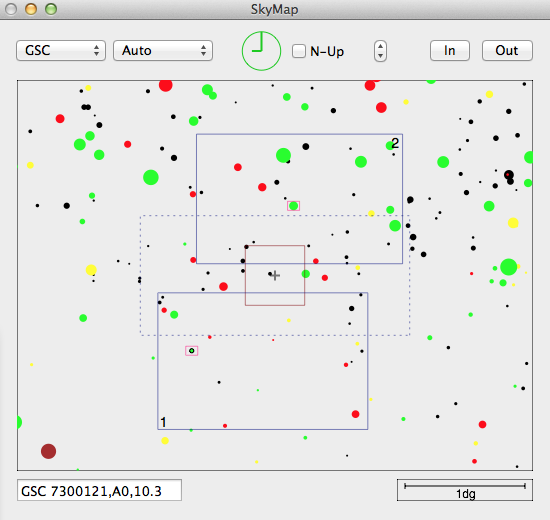
Displays the selected Star Catalog {SAO, GSC, USNO, 2MASS }
with an overlay of
area where the guider probe vignettes the CCD (dashed blue rectangle)
- If you click on a star its name will be displayed in the
edit-field in the lower left corner of the SkyMap window.
- Additionally, the relative star position will be transferred
into the guider window's Goto fields.
The guider may then be moved to that star by pressing the Goto
button on the respective guider's GUI.
- An Option-click transfers the star's offset to the TeleGUI
(Swope) window.
-
- The telescope may then be moved to this star
by pressing the 0,0 button on the TeleGUI, if the
offset does not exceed the maximum allowed offset (?).
- A Control-click transfers the star's coordinates to the TeleGUI
(Swope) window
- The telescope does not move; press Send in the
Telescope window to slew there (with checks and
a confirmation). The SkyMap keeps showing the telescope
position.
Object List
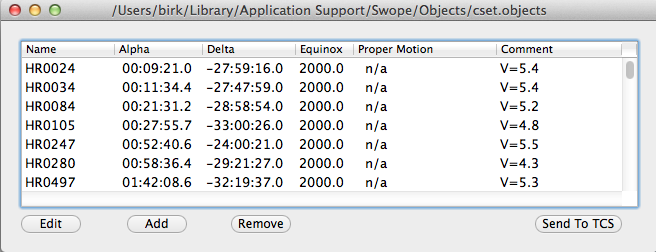
The picture is from an older version: its Send To TCS button is
now Preview and Slew….
The object lists are ASCII files, formatted as one object per
line; each data field is seprarated by a '|' (pipe) character:
Name | 10:50:10.0 | -12:00:15.0 | 2000.0 | 0,0 | Comment
The default location for object lists is
/Users/Shared/Library/Application Support/Swope/Objects/
- Preview: copies the selected object (with proper motion
applied) into the Telescope window's R.A./Dec.
fields; Send then slews there under the object's name.
The telescope does not move, and the SkyMap and
Airmass windows keep showing the telescope position. The
next reading of the telescope (Get, or the start of an
exposure) puts the telescope position back into the fields.
- Slew…: slews to the selected object, with the same checks
and confirmation as Send; after a successful slew it also
fills the camera's Object and Comment fields.
Airmass Display
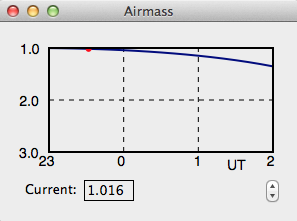
Shows a graph of the change in airmass at the current telescope position.
Guider Control
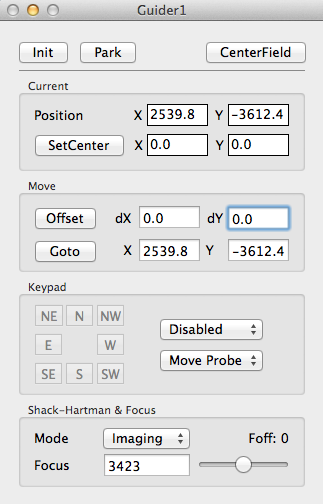
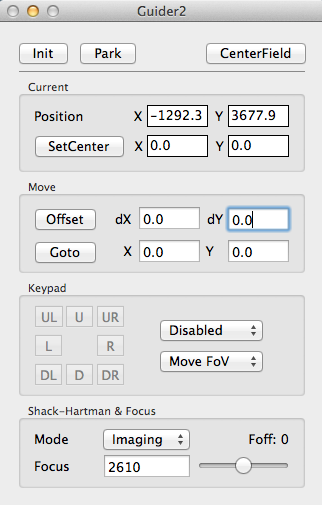
- Init: initializes both probe axes (x,y) and the focus stage.
- When the Swope-GUI is started after a power-cyle all
controls execpt the Init button will be disabled
and an initialization is required before any guider may move.
- Park: moves the probe close to the Home position.
- CenterField: moves the probe to the position marked
by the SetCenter button.
- Position: current X,Y position of the probe [arcsec].
- SetCenter: marks the current position for future quick
access by the CenterField button.
- Offset: moves the amount in the dX,dY fields [arcsec].
- Goto: moves to the absolute position in the X,Y fields
[arcsec].
- Keypad: { Disabled, Slow, Medium, Fast, Turbo }, Turbo
at startup.
- The guider probe may be moved by holding down the
N,E,S,W buttons.
- Since the field-of-view of the guider cameras is not
square to the cardinal directions on the sky, the probes
may be moved in two modes { Move Probe , Move FoV }, Move FoV
at startup, whose buttons read U, D, L, R and their diagonals.
- Shack-Hartman Mode: { Imaging, SH, SH+LED }
- The Shack-Hartman control of the telescope focus is
not yet available, because the current TCS does not
allow for external focus control.
- Focus: moves the guider-probe focus to the entered position.
- The slider moves the focus in a velocity controlled way;
ie. the further one moves the slider, the faster the focus motion becomes.
If the mouse-button is released the focus motion stops immediately.
- The focus units are calibrated to be equivalent to the telescope
focus (ie. 1 unit ~ 3.5 um at the probe stage).
- Foff: current focus offset applied due to the Filter
selected on the Camera-GUI.
Galil Hardhat
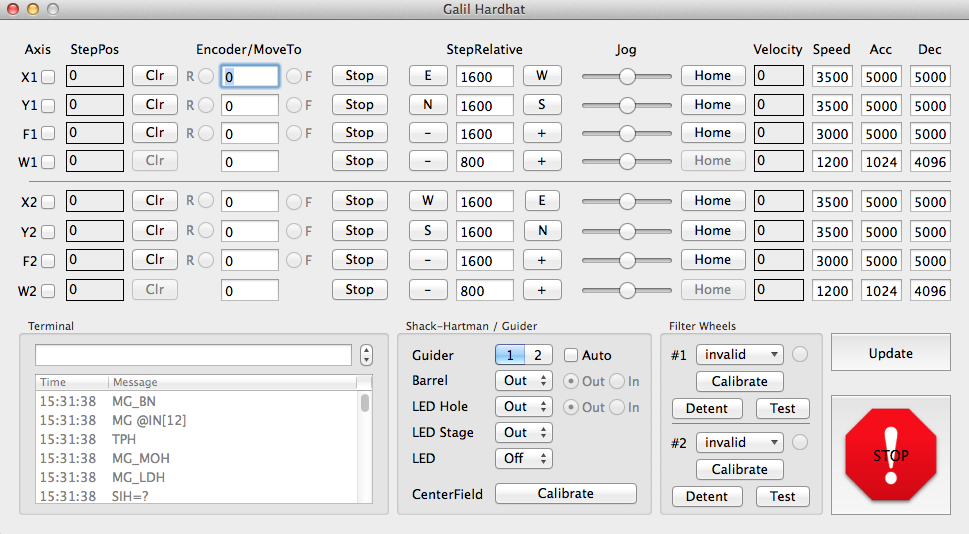
- Engineering Mode only (password protected).
TCP/IP Interface
The GUI accepts one-line commands on TCP port 51911, e.g. from an
observing sequencer. Each command gets a one-line answer; errors start
with -E, and unknown commands are answered with
unknown command. Commands and answers are written to the log file.
- version
- version and build of the running GUI.
- exptime [seconds]
- sets the exposure time; without a value it only reports it.
The answer is the exposure time in effect (an invalid value
leaves it unchanged).
- imagetype object | bias | dark | flat | focus | focus_auto
- sets the exposure type.
- object text
- sets the Object field; text may contain spaces.
- move_filter name
- moves the filter wheels to the named filter; the wheels are
still moving when the answer arrives (see status).
- get_wheels
- the current filter and whether the wheels are moving,
e.g. V,0.
- start [loops]
- starts an exposure sequence like the Start button,
optionally setting Loops first. Answers right away;
poll status until the sequence has ended.
With Focus (auto) selected this opens the Center/Step
dialog on the observing Mac: use focus_auto instead.
- focus_auto [center [step]]
- runs a Focus (auto) sequence without
the dialog, using the current ExpTime and Loops.
Without center (or 0) the current focus is used, without
step (or 0) the focusAutoStep preference.
Answers right away, -Efailed if the sweep is refused
(e.g. outside the focus limits); poll status until it has
ended. Fewer than 5 or more than 10 Loops, or an
ExpTime above 30 seconds outside Engineering Mode,
still ask for confirmation on the observing Mac.
- status
- two numbers: 1 while an exposure sequence is running, and
1 while the filter wheels are moving (0 otherwise),
e.g. 1 0.